
Resize Video
A landscape clip needs to become a vertical Reel, a square post, or simply a smaller file for email. This tool resizes video in your browser: choose a target shape and resolution, decide whether to fit the whole frame with blurred or coloured bars or fill the frame by cropping, preview the result, and record a new file with the original sound.
- Free to use
- No sign-up
- Runs in your browser
Video resizer
Video Size Reference Pack
Printable video format reference: social video size chart, aspect ratio guide with safe zones, export settings card and a video project checklist.
- Size chart (PDF/XLSX)
- Aspect ratio guide (PDF)
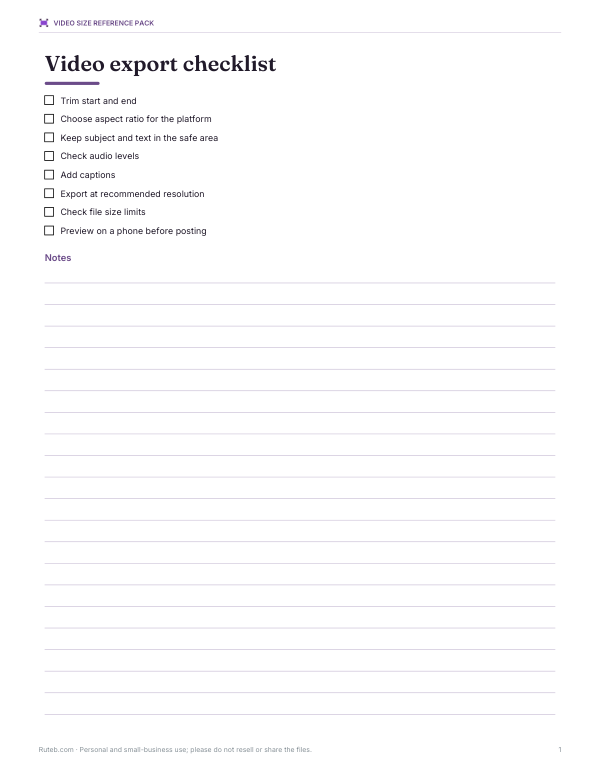
- Export checklist (PDF/DOCX)
Formats: PDF, XLSX, DOCX. Instant download after payment (link valid 72 hours, up to 5 downloads). AI-assisted: the templates were drafted with AI help and reviewed and laid out before publishing.
$3.00 USD, one-time 3 files · about $1.00 each
- Instant download
- 7-day refund
- Secure checkout by Stripe
7-day money-back guarantee. Full refund within 7 days of purchase, even after you download.
Full refund within 7 days — see the refund policy and license.
Free printables
Single sheets you can print right now, no sign-up. The full pack adds every sheet in one download plus the editable files.
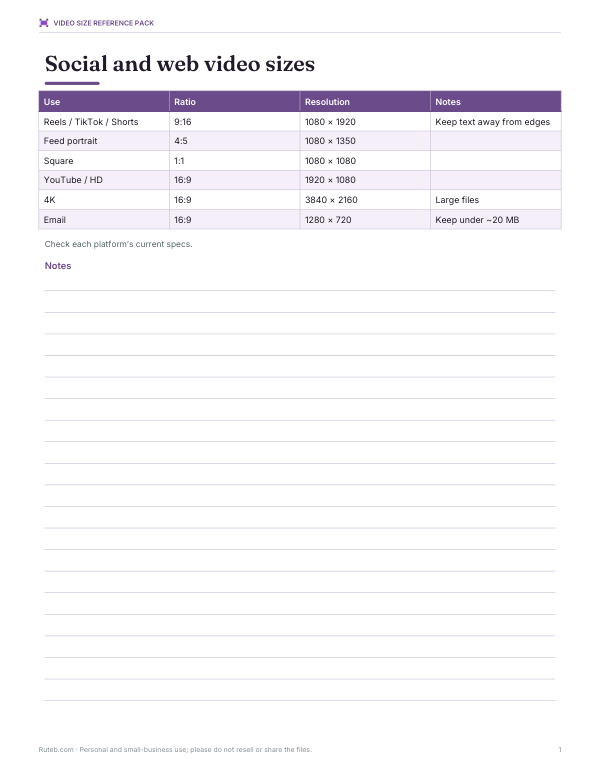
Common target sizes
| Use | Aspect ratio | Resolution |
|---|---|---|
| Reels, TikTok, YouTube Shorts, Stories | 9:16 | 1080 × 1920 |
| Instagram / Facebook feed (portrait) | 4:5 | 1080 × 1350 |
| Square posts | 1:1 | 1080 × 1080 |
| YouTube, presentations, TV | 16:9 | 1920 × 1080 (or 3840 × 2160 for 4K) |
| Email, chat, web embeds | 16:9 | 1280 × 720 or 854 × 480 |
Platforms update their recommended specs from time to time; these are widely used current sizes. Uploading at the recommended size avoids the platform cropping or rescaling your video in ways you didn’t intend.
Fit vs fill
| Mode | What happens | Best for |
|---|---|---|
| Fit, blurred background | Whole frame kept; empty space filled with a blurred, zoomed copy of the video | Landscape clips posted as vertical video |
| Fit, colour bars | Whole frame kept with solid bars (letterbox or pillarbox) | Presentations, clean look, brand colours |
| Fill (crop) | Frame fills the target; edges are cropped | When the subject stays in one area of the frame |
In fill mode, use the crop position slider to keep the subject in view — for example, slide left if the speaker stands on the left of a landscape frame.
Worked example
A 45-second 1920 × 1080 landscape clip of a talk needs to become a vertical Reel. Choosing 9:16 at 1080 × 1920 with “Fit, blurred background” keeps the whole speaker and slide, with the video filling the width and blurred copies above and below. At “Balanced” quality the estimate is around 25 MB. For a tighter look, “Fill” crops the sides; moving the crop slider to about 35% keeps the speaker, who stands left of centre, in frame. The same clip at 1280 × 720 for email comes out at about 10 MB.
Making files smaller
- Lower the resolution: 1280 × 720 has less than half the pixels of 1920 × 1080.
- Choose “Smaller file” quality for talking heads and screen recordings; keep “Balanced” or higher for fast motion.
- Trim the clip to what you need — duration affects size directly.
- Most email services limit attachments to around 20–25 MB; for larger files, share a link instead.
How it works and its limits
The tool plays your video into a hidden canvas at the new size, draws each frame with the fit or crop you chose, and records the canvas together with the original audio using the browser’s MediaRecorder. Because it records in real time, a 3-minute video takes about 3 minutes. The video is re-encoded, so quality can drop slightly. Keep the tab visible while it runs — browsers throttle background tabs. Very long or 4K videos are better handled by desktop software, which can also resize without re-encoding audio.
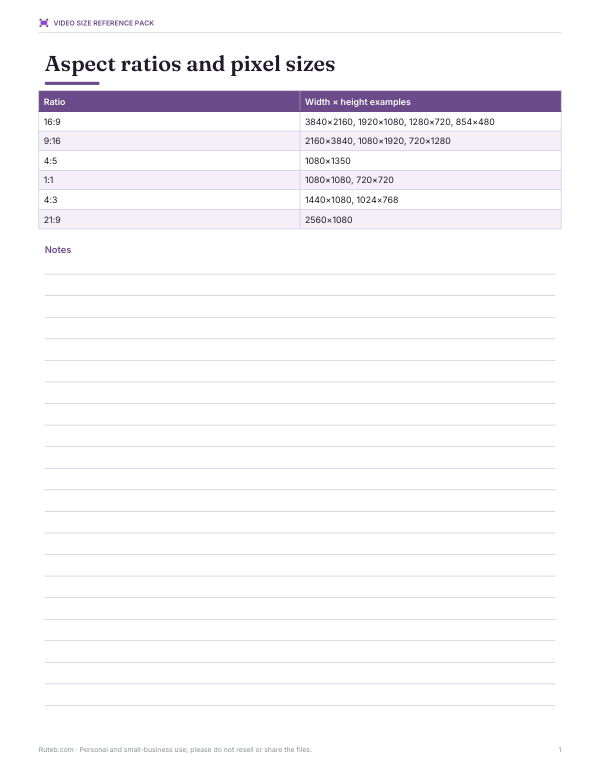
Aspect ratio basics
Aspect ratio is the shape of the frame, written as width to height. 16:9 is the standard widescreen shape of TVs and YouTube; 9:16 is the same shape turned upright for phones; 1:1 is square; 4:5 is a slightly tall rectangle that takes up more of a phone feed than a square. Resolution is how many pixels fill that shape — 1920 × 1080 and 1280 × 720 are both 16:9, just at different sizes.
Safe zones for vertical video
On Reels, TikTok and Shorts, the app overlays buttons, captions and the account name on the right side and bottom of the screen. Keep important text and faces away from roughly the bottom fifth and the right edge of a 9:16 frame. When you convert landscape footage with “Fit, blurred background”, the video sits in the middle band, which is usually clear of these overlays — one reason this layout is popular for repurposed clips.
Choosing the right approach for your footage
| Footage | Suggested mode |
|---|---|
| Talking head, centred | Fill — crop to 9:16 keeps the face large |
| Speaker plus slides | Fit with blurred background — keeps the slides readable |
| Wide landscape scenery | Fit with blur or bars; cropping loses the view |
| Screen recording | Fit with colour bars — sharp text matters more than filling the frame |
| Product shot | Fill with the crop slider on the product |
Resolution and quality
Upscaling — making a video larger than its original resolution — doesn’t add detail; a 720p clip resized to 1080 × 1920 will look soft. Where possible, choose a target at or below the original resolution, or use the “half the original size” option for a quick, lighter file. For clips with lots of motion, such as sports or dance, pick “Higher quality” so the encoder has more bits for fast-changing frames.
Formats
Recent Chrome and Edge versions usually save MP4 (H.264/AAC); Firefox and others save WebM (VP8/VP9 with Opus). Most social platforms accept both, but some older editing apps and iPhones prefer MP4. The tool reads whatever formats your browser can play — HEVC (H.265) iPhone videos may not play in every browser, in which case export them as “Most Compatible” (H.264) on the phone first.
Privacy
Your video never leaves your device. Processing happens entirely in your browser, and the new file exists only until you download it or close the page.
Frequently asked questions
How do I make a video vertical for Reels or TikTok?
Choose 9:16 (1080 × 1920) and either fit with a blurred background or fill by cropping.
Is my video uploaded?
No. Everything happens in your browser.
Why does resizing take as long as the video?
The browser re-records the video in real time at the new size.
Will the output be MP4?
In recent Chrome and Edge, often yes; otherwise WebM.
How can I make a video smaller for email?
Resize to 1280 × 720 or 854 × 480 and choose “Smaller file”.
Is there a watermark?
No.
Can I resize a video without cropping?
Yes — choose a fit mode; the whole frame is kept with blurred or coloured bars around it.
Does resizing reduce quality?
The video is re-encoded, so there can be a small loss; avoid enlarging beyond the original resolution.